

Affiliate disclosure: We may earn a commission if you purchase through our Amazon links. This comes at no extra cost to you and helps support our research.
If you type for hours at a home office desk, the wrong keyboard can turn into wrist pain, stiff shoulders, and end-of-day fatigue. Ergonomic keyboards reposition your hands into more natural angles — and the right split or wireless model can make daily work noticeably more comfortable.
- 5 keyboards compared from ~$52 to ~$150
- Split and wave designs for natural hand positioning
- Wireless Bluetooth picks for clean home office desks
- Buying guide for Mac, Windows, budget, and premium choices
Why Use an Ergonomic Keyboard?
A standard keyboard keeps your hands close together and your wrists bent at awkward angles. After hours of typing every day, that small mismatch adds up — sore wrists, tight shoulders, and fatigue that follows you off the clock. An ergonomic keyboard reshapes the layout so your hands, wrists, and arms sit in a more relaxed, natural position.
Instead of forcing you to adapt to a flat rectangle, these keyboards use design changes that support how your body actually wants to type:
- Split designs separate the left and right halves so you can place them at shoulder width and stop hunching inward
- Wave layouts curve the key rows to follow the natural arc of your fingers
- Raised center (tenting) lifts the middle of the keyboard so your forearms rest at a more comfortable angle
- Built-in wrist rests support your palms during pauses so your wrists are not dangling off the desk edge
Who benefits most?
If you type more than a few hours daily, already notice wrist or shoulder discomfort, or spend long stretches at a home office desk, an ergonomic keyboard is worth serious consideration. Many people feel less strain within two to four weeks — especially when combined with a properly raised screen and regular breaks.
Quick verdict
The Logitech Ergo K860 is our top pick for most home offices: a proven split design with a cushioned wrist rest and multi-device wireless. On a budget, the Nulea delivers real ergonomic comfort for under $55. Mac users should look at the Logitech Wave Keys for Mac for a layout built around Apple workflows.
Quick comparison: 5 ergonomic keyboards
Side-by-side snapshot of our top picks. All link to Amazon with our affiliate tag; prices fluctuate — check each listing for today's deal.
| Keyboard | Price | Type | Wireless | Backlight | Best for |
|---|---|---|---|---|---|
| Logitech Ergo K860 | ~$150 | Split | Yes | No | Best overall |
| ProtoArc EK01 | ~$83 | Split | Yes | Yes | Editor's choice |
| Nulea Wireless | ~$52 | Split | Yes | Yes | Best value |
| Logitech Wave Keys for Mac | ~$70 | Wave | Yes | No | Best for Mac |
| Arteck Split | ~$55 | Split | Yes | No | Most popular |
Prices approximate as of May 2026. Amazon ratings and review counts change over time.
Detailed reviews
Each keyboard below was evaluated on comfort, build quality, wireless connectivity, platform compatibility, and value relative to Amazon customer feedback.
Logitech Ergo K860
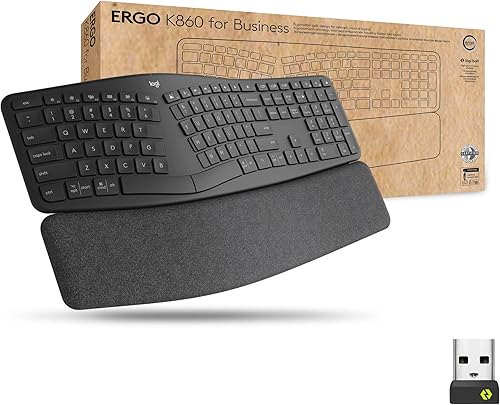
Best Overall • ~$149.99 • 3,200+ reviews
The Logitech Ergo K860 is the premium pick for anyone serious about long-term comfort, pairing a deeply sculpted split layout with one of the best wrist rests in the category.
- Split curved keyframe keeps hands at a natural shoulder width
- Three-layer cushioned wrist rest with memory foam and high-density foam
- Connects to up to three devices via Bluetooth or the included USB receiver
- Up to two years of battery life on two AAA batteries
Pros
- Best-in-class wrist rest for full workdays
- Exceptional two-year battery life
- Premium build quality for daily heavy use
- Works with both Mac and Windows
Cons
- No backlight for low-light typing
- Large footprint needs ample desk space
- Among the most expensive picks here
- Split layout takes a few days to adjust to
ProtoArc EK01 Backlit Bluetooth
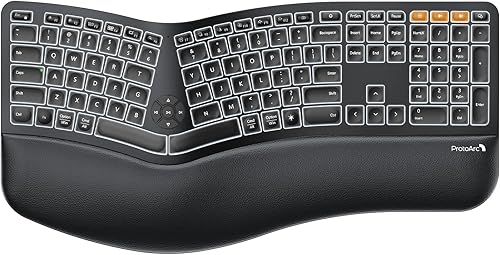
Editor's Choice • ~$82.99 • 1,850+ reviews
The ProtoArc EK01 delivers near-premium ergonomics and adjustable backlighting at roughly half the price of the K860, making it our top recommendation for most buyers.
- Split ergonomic layout with a gentle curve to reduce wrist strain
- Adjustable white backlight for typing in dim home offices
- USB-C rechargeable battery with multi-device Bluetooth pairing
- Switch between up to three paired devices with quick-switch keys
Pros
- Strong value at about half the cost of the K860
- Backlit keys fill a gap left by many premium models
- USB-C charging is modern and convenient
- Reliable three-device connectivity across Mac and Windows
Cons
- Wrist rest padding is good but not as plush as the K860
- Key feel is slightly less refined than top-tier Logitech options
- Backlight drains battery faster than non-lit keyboards
- Large split footprint still requires a roomy desk
Nulea Wireless Ergonomic
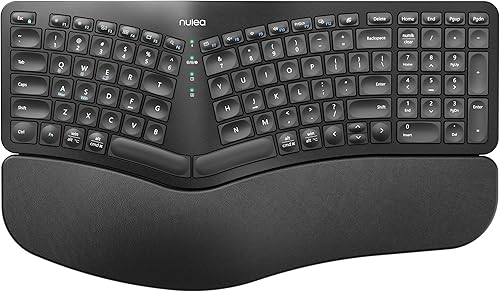
Best Value • ~$51.99 • 2,600+ reviews
The Nulea Wireless Ergonomic packs split-key comfort, RGB backlighting, and dual connectivity into one of the most affordable packages in the category.
- Split curved design with a cushioned palm rest for natural typing posture
- RGB backlight with multiple color modes for low-light visibility
- Dual connectivity via Bluetooth and 2.4 GHz wireless dongle
- USB-C rechargeable battery compatible with Mac and Windows
Pros
- Lowest price in this roundup with true split ergonomic design
- RGB backlight is rare at this budget tier
- Dual wireless options cover laptops, desktops, and tablets
- USB-C charging avoids hunting for proprietary cables
Cons
- Build quality and key stability lag behind Logitech and ProtoArc
- Typing feel is softer and less crisp than premium alternatives
- RGB lighting shortens battery runtime
- Less polished multi-device switching than higher-end models
Logitech Wave Keys for Mac

Best for Mac • ~$69.99 • 1,420+ reviews
Logitech Wave Keys for Mac offers a gentler learning curve than full split boards, with a wave-shaped layout and macOS-specific keycaps that feel native from day one.
- Wave-shaped keyframe guides fingers into a relaxed, curved typing position
- macOS-optimized layout with dedicated keys for Mission Control and Spotlight
- Pairs with up to three Apple devices via Bluetooth or USB receiver
- Integrated cushioned palm rest with long battery life
Pros
- Easiest transition from a standard keyboard
- macOS key legends and shortcuts work out of the box
- Trusted Logitech build quality at a mid-range price
- Three-device pairing covers MacBook, iMac, and iPad workflows
Cons
- No backlight limits usability in dark rooms
- Wave layout is less aggressive than split keyboards for severe wrist pain
- Mac-specific layout is not ideal for Windows-first users
- Integrated palm rest is not adjustable for different desk heights
Arteck Split Ergonomic

Most Popular • ~$54.99 • 4,100+ reviews
The Arteck Split Ergonomic is the category's crowd favorite on Amazon, offering a proven split layout and cushioned wrist rest at a price that undercuts most name-brand alternatives.
- Classic split design separates key clusters to reduce wrist bending
- Built-in cushioned wrist rest supports neutral hand positioning
- 2.4 GHz USB receiver provides a stable plug-and-play wireless connection
- Rechargeable battery delivers up to six months of use between charges
Pros
- Highest review volume in this roundup
- Affordable entry point into split ergonomic typing for Windows users
- Six-month battery life reduces charging interruptions
- Simple USB receiver setup with no Bluetooth pairing hassles
Cons
- Windows-only compatibility limits use with Mac and mobile devices
- Single-device USB receiver with no multi-device switching
- No backlight for working in low-light environments
- Key feel and materials are functional but not premium
How to choose the right ergonomic keyboard
Split vs curved/wave
Split keyboards let you position each half at shoulder width, which helps if your wrists feel pinched on a flat board. Curved or wave layouts keep a single piece but angle the keys to match how your hands naturally rest — often an easier first step if you have never used an ergonomic keyboard before.
Wireless vs wired
Wireless models keep your desk cleaner and make it easier to position each half where it feels right. Bluetooth works well for laptops and tablets; a USB receiver can feel snappier on a desktop PC. Wired keyboards skip battery worries but give you less freedom to adjust placement.
Mac vs Windows compatibility
Most picks here work on both Mac and Windows, but key labels and shortcuts differ. If you live in macOS, a Mac-specific layout like the Wave Keys saves guesswork on function keys and media controls. Windows users should confirm the keyboard ships with a PC-friendly layout before buying.
Budget vs premium
Entry-level boards around $50–$55 prove you do not need to spend a lot to get a more comfortable typing angle. Premium models near $150 add better build quality, adjustable tenting, and longer-lasting wrist support. Pair any keyboard with a raised screen — our laptop stands guide covers the best stands to use alongside an external keyboard and mouse.
Ergonomic keyboard FAQ
Will an ergonomic keyboard fix my wrist pain?
An ergonomic keyboard can ease the strain that leads to wrist pain, but it is not a guaranteed fix on its own. Many people notice real improvement within two to four weeks. If you already have an injury or a diagnosed condition, check with a doctor first. A keyboard works best alongside a proper desk setup, regular breaks, and stretching or physical therapy if you need it.
Which keyboard is best for Mac users?
The Logitech Wave Keys for Mac is built specifically for macOS, with Apple-style keys and layout. The Logitech K860, ProtoArc EK01, and Nulea also work on Mac, though a few function keys may not match a standard Apple keyboard. The Arteck is Windows-only and is not a good fit for Mac users.
Is the Logitech K860 worth the premium price?
At around $150, the K860 is worth it if you type many hours a day and want the most polished ergonomic experience. Its cushioned three-layer wrist rest, proven split design, and roughly two-year battery life justify the cost for heavy typists. On a tighter budget, or if you want backlighting, the ProtoArc EK01 delivers similar ergonomic benefits for about $83, plus white LED backlighting and USB-C charging.
How long does it take to adjust to a split keyboard?
Most people get comfortable with a split keyboard within three to seven days of daily use. Typing speed usually returns to normal within two to four weeks. Wave-style keyboards like the Logitech Wave Keys have almost no learning curve — most users type at full speed from day one.
Do I need backlighting on an ergonomic keyboard?
Backlighting only matters if you often type in dim light or at night. Among our picks, the ProtoArc EK01 has white LED backlighting and the Nulea offers seven-color RGB. The Logitech models and the Arteck do not have backlit keys. Keep in mind that backlighting drains wireless battery life faster.
Can I connect these keyboards to multiple devices?
Yes — most of our top picks support multi-device pairing. The Logitech K860, Wave Keys, ProtoArc EK01, and Nulea each connect to up to three devices and let you switch with a button press. The Arteck supports only one device through its 2.4GHz USB receiver.
What's the best budget ergonomic keyboard?
For the most features per dollar, the Nulea Wireless at $51.99 is our top budget pick: split ergonomic layout, seven-color RGB backlight, dual Bluetooth and 2.4GHz connectivity, USB-C charging, and Mac and Windows support. The Arteck Split at $54.99 is another strong option for Windows-only users who want up to six months of battery life and do not need backlighting or Bluetooth.
Do I need a wrist rest or ergonomic mouse too?
It depends on your setup. Several picks — including the K860, Wave Keys, and Arteck — include built-in cushioned wrist rests, so you may not need a separate one. If your keyboard has no rest, adding one can help keep your wrists neutral during pauses. An ergonomic mouse is worth considering too, especially if you point and click for hours. Keyboard and mouse together address strain across your whole arm, not just while typing.
Split keyboard vs wave keyboard — which should I choose?
Split keyboards separate the two halves so you can position them at shoulder width, which reduces hunching and wrist bending. They offer the strongest ergonomic benefit but take a few days to get used to. Wave keyboards keep a single curved board with keys angled to match your natural hand position — they are easier to start using right away and still improve comfort over a flat keyboard. Choose a split if you type heavily and want maximum ergonomics; choose a wave if you want a gentler transition with less relearning.
Final verdict
Our top recommendations
For most people who type all day, the Logitech Ergo K860 (~$150) is the best overall pick — split layout, cushioned wrist rest, and multi-device wireless in a proven design. Need to spend less? The Nulea Wireless (~$52) delivers strong ergonomics, RGB backlight, and dual connectivity at a fraction of the price. On a Mac? The Logitech Wave Keys for Mac (~$70) pairs Apple-optimized keys with an easy-to-learn wave layout.
Build out the rest of your workspace with our home office setup guide, office chairs roundup, and standing desk picks.
As an Amazon Associate, we earn from qualifying purchases. Prices and availability subject to change. Product names and logos are trademarks of their respective owners. Amazon and the Amazon logo are trademarks of Amazon.com, Inc. or its affiliates.

Thomas Camp Jr.
Thomas has spent 14+ years advising small business owners on the tools, equipment, and software that actually improve daily operations — including the desk setups people use every day.


